
This is an English translation of the practical guide our Paraguayan partners use to generate the documents required for permanent residency. It shows how to declare local Paraguayan income — by issuing invoices and filing the monthly IVA (VAT) declaration — which is one of the two ways to prove the economic solvency now required for permanent residency. See the background and the new requirements in our article: New conditions for permanent residency in Paraguay (from 6 July 2026).
⚠️ Before you start: the timing matters more than the clicks. Since 6 July 2026 (DNM Resolution N° 407/2026) the local-income route to permanent residency is judged on your last three monthly IVA returns, together with the Constancia de RUC and the Certificado de Cumplimiento Tributario — and those returns have to show real income. Zero declarations keep you straight with the tax office, but a compliance certificate built on empty filings is refused as proof of solvency.
So plan backwards from your filing date. In practice DNM expects the RUC to have been active for about four months when you file — one month more than the three returns themselves cover — so register the RUC and start invoicing three to four months before you submit the change of category. The change of category itself is filed in months 21–24 of your temporary residency (within the three months before the carnet expires), which puts the start of invoicing around month 17–18. If you cannot take this route, prove foreign income instead: an apostilled employment or service contract (or pension certificate) plus evidence of the payments received.
All steps are done online at the Marangatu tax portal https://marangatu.set.gov.py/eset/ (the tax authority is now DNIT — the portal address still carries the old SET domain), logging in with your cédula number as the username and the password you created after signing your RUC registration. The screenshots show the Marangatu interface in Spanish (that is exactly what you will see); the instructions are in English.
1. Request the timbrado (Solicitar Timbrado)
- This is a one-off step you need before you can issue virtual invoices in Marangatu for the first time. Once it is active you do not have to repeat it — if you already have an active timbrado, skip this step.
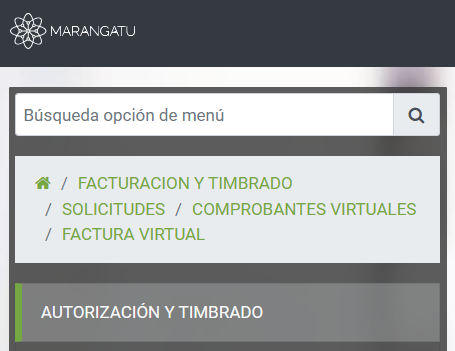
- Go to FACTURACIÓN Y TIMBRADO → SOLICITUDES → COMPROBANTES VIRTUALES → FACTURA VIRTUAL, then click AUTORIZACIÓN Y TIMBRADO.
- In “puntos solicitados” enter 1 and confirm using the green buttons.
2. Issue an invoice (Emitir Factura)
- To declare income you have to generate the corresponding invoice, with the details of the client you are invoicing.
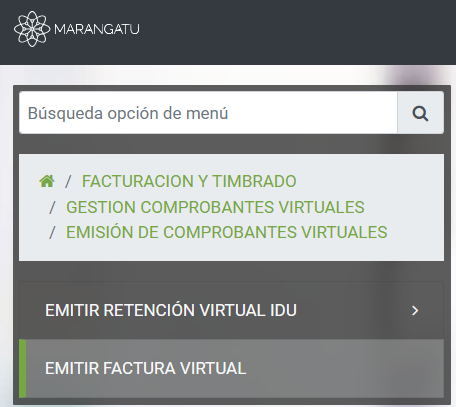
- Go to FACTURACIÓN Y TIMBRADO → GESTIÓN COMPROBANTES VIRTUALES → EMISIÓN DE COMPROBANTES VIRTUALES → EMITIR FACTURA VIRTUAL.
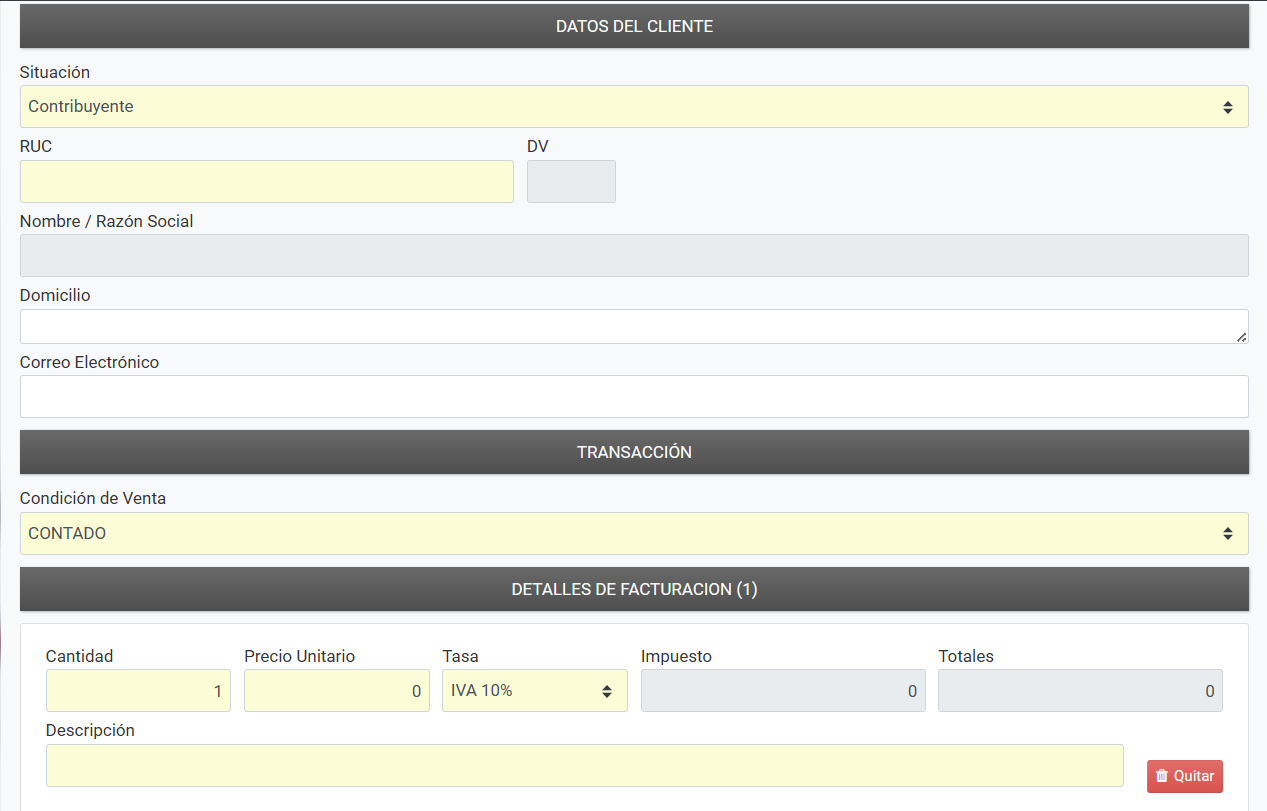
If the client has a Paraguayan RUC: set “Situación” to Contribuyente, type the digits before the dash (-) and let the system find the person/company automatically. Then enter the amount (a value above the minimum wage is recommended) in “Precio Unitario” and a service description. Fill in only the obligatory yellow fields.
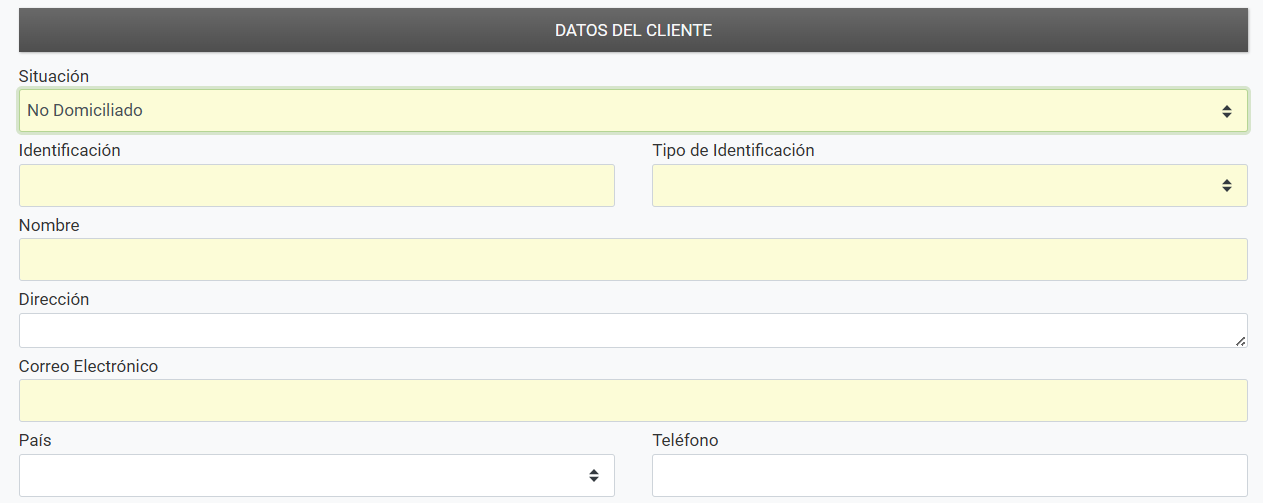
If the client is a foreign individual without a Paraguayan RUC, or a foreign company (for example a US LLC): set “Situación” to No Domiciliado and enter the passport or tax ID in the “Identificación” field.
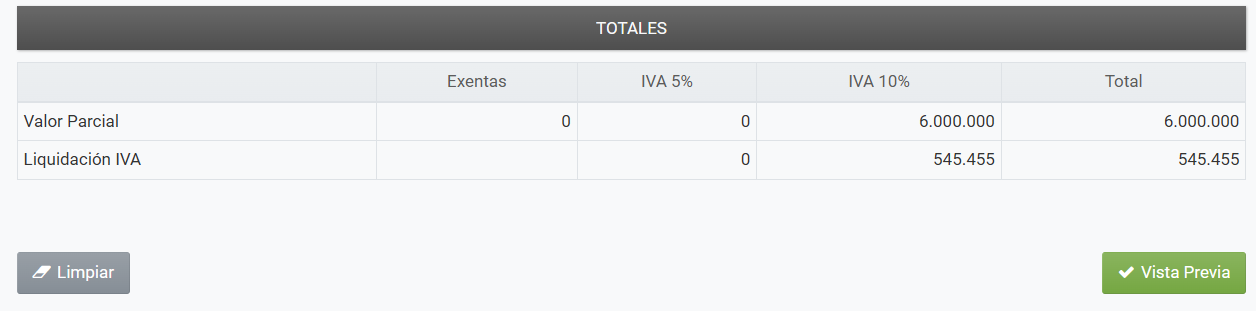
The IVA amounts are calculated automatically from the amount you enter. Click “Vista Previa” and then confirm the generated invoice.
3. Impute the invoices (Imputar las facturas)
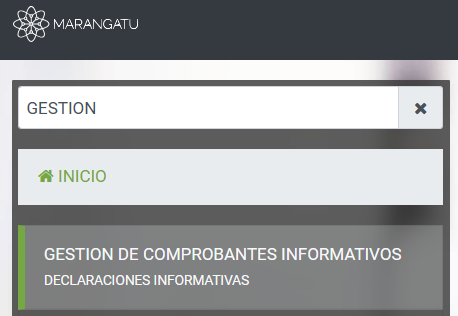
- In the menu search box type GESTIÓN and select “Gestión de comprobantes informativos”.
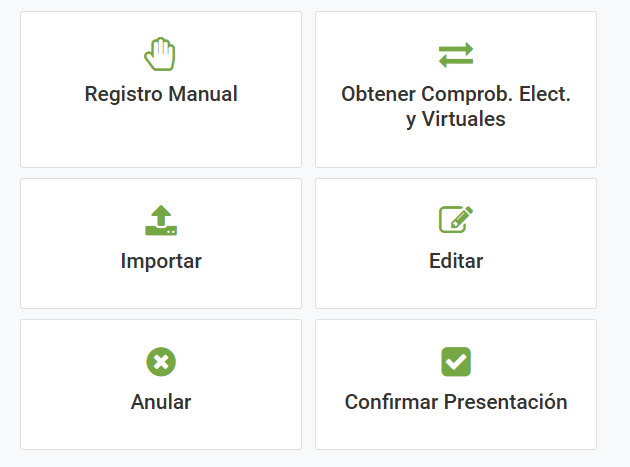
- Select “Obtener comprobantes electrónicos y virtuales”.
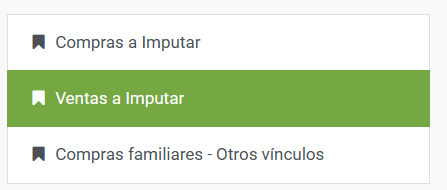
- Select “Ventas a imputar”.
- Select the year and month, click “Imputar todo” and then “Siguiente”. Marangatu shows how many comprobantes it is about to impute — confirm with “Imputar comprobantes”.
- The wizard now moves to the Obligaciones step and shows the table OBLIGACIONES ASOCIADAS: every tax has a red/green switch in the “Imputado a” column. Slide to green only the obligations your RUC actually holds and that these invoices belong to. For the standard residency set-up — a RUC registered for IVA General — that means IVA GENERAL green, IRP – RSP and IRE red. Then click “Procesar Imputación” and confirm.
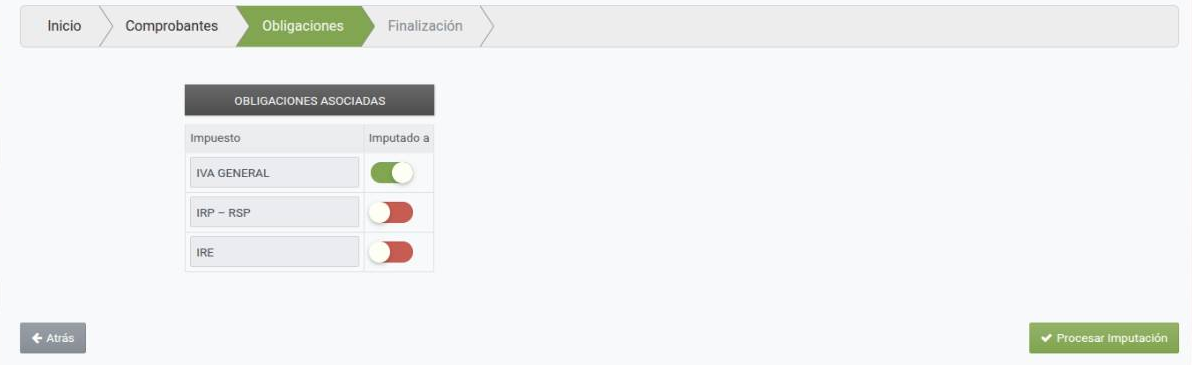
- Marangatu rejects an imputation to a tax you are not registered for, or to one that was not in force on the date of the invoice — it ends up as an inconsistency under Herramientas → Consulta de Estado de Procesos de Imputación. (In the “Ventas a imputar” section there is no “No imputar” option, which is why these switches matter.)
- If your RUC is also registered for IRP – RSP — which becomes obligatory once your gross income from personal services passes ₲80,000,000 in a calendar year (art. 62 of Ley 6380/2019) — then your service invoices belong to that obligation as well and its switch goes green too. Invoicing a little above the minimum wage, as recommended here, stays well below that threshold.
- Imputing the invoices does not fill in your declaration: the amounts still have to be typed into form 120 in step 4.
4. File the IVA declaration (Declaración de IVA)
- Every month you file the declaration for the income generated in the previous month. The deadline is not the same for everyone: it depends on the last digit of your RUC before the hyphen (the check digit after the hyphen does not count) — 0 → 7th, 1 → 9th, 2 → 11th, 3 → 13th, 4 → 15th, 5 → 17th, 6 → 19th, 7 → 21st, 8 → 23rd, 9 → 25th day of the following month. Example: RUC 1234567-8 ends in 7, so the September declaration is due by 21 October. A deadline that falls on a weekend or public holiday moves to the next business day (DNIT’s calendario perpetuo). Spouses each have their own RUC, so each has their own deadline.
- The tax must be paid by the same day (step 9). Do not skip either — late filing or late payment generates penalties (multas) and late-payment surcharges.
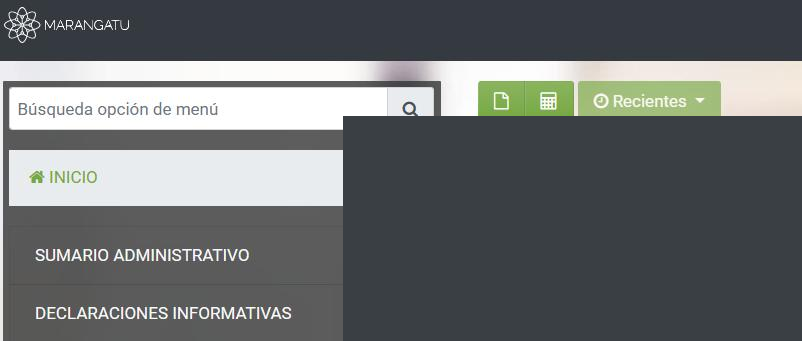
- On the home page, click the first green button to start a new declaration.
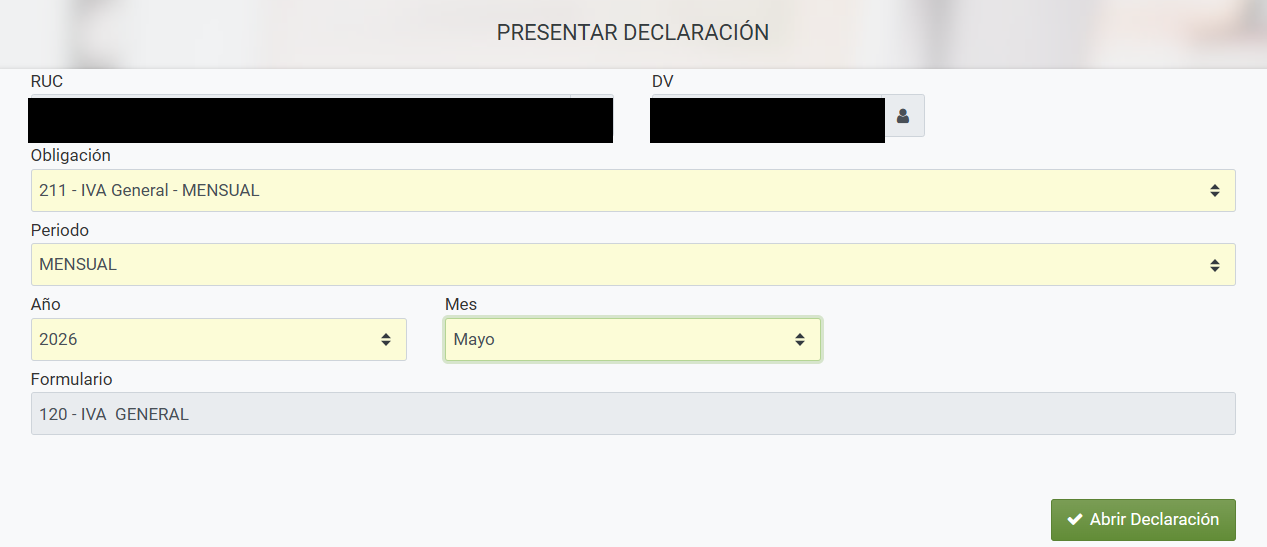
- Choose the obligation “211 – IVA GENERAL MENSUAL”, select the month and year, and open the declaration (form 120).
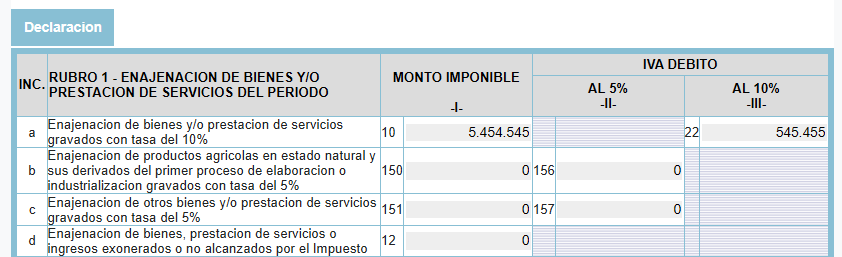
- In Rubro 1, item a), box (casilla) 10, enter the amount of the invoice generated the previous month (or the sum of invoices) divided by 11 and multiplied by 10 (i.e. INVOICE AMOUNT / 11 × 10); the corresponding IVA amount appears automatically.
- Do not stop at Rubro 1. Rubro 2 (“Enajenación de bienes y/o prestación de servicios de los últimos seis (6) meses, incluido el periodo que se declara”) is complementary information the form asks for, and Marangatu does not work it out for you. In casilla 160 enter the accumulated net amount (IVA excluded) of your 10% sales over the last six monthly periods, this one included — that is the sum of casilla 10 across those returns. Casillas 161 and 26 (5% agricultural sales; exempt or non-taxable operations) stay at 0 unless you had any; casilla 27 is their total (160 + 161 + 26); the export boxes 162, 163 and 29 stay at 0 with casilla 30 as their sum; and casilla 31 (27 + 30) is your total accumulated income. If the form does not add these up by itself, type them in.
- In your first return there is only one period to add up, so casilla 160 equals casilla 10; from the seventh month onwards it is a rolling window of the last six periods. Example, invoicing ₲6,000,000 a month: casilla 160 is 5,454,545 in the first month and 16,363,635 in the third.
- If you have local expense invoices to deduct, fill in the corresponding boxes of Rubro 3 (Compras locales e importaciones del periodo) too. This guide does not cover the deduction calculations — it is best to use an accountant to register them correctly and reduce the tax due.
- Click “Presentar Declaración” and confirm.
5. Submit the talón (Presentación de talón)
- In the menu search box type GESTIÓN again and select “Gestión de comprobantes informativos”, then select “Confirmar Presentación”.
- Select the month and year and click “Presentar Declaración” on the generated talón.
6. Download the declarations
On the home page, all of your latest IVA declarations (FORM 120) will be listed, ready to download.
7. Download the tax-compliance certificate (Certificado de Cumplimiento Tributario)
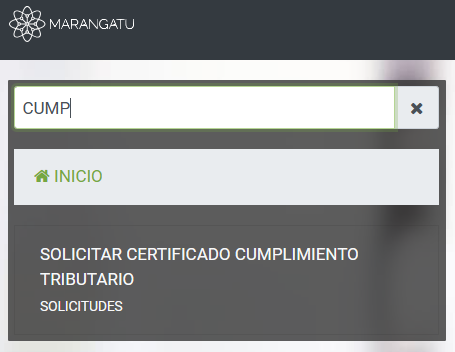
- Type CUMP… in the search box and select “Solicitar Certificado Cumplimiento Tributario”, then generate and download the certificate.
- Note: it can only be generated if there are no pending amounts to pay (see step 9 for how to pay any pending amounts).
8. Download the RUC constancia and cédula tributaria
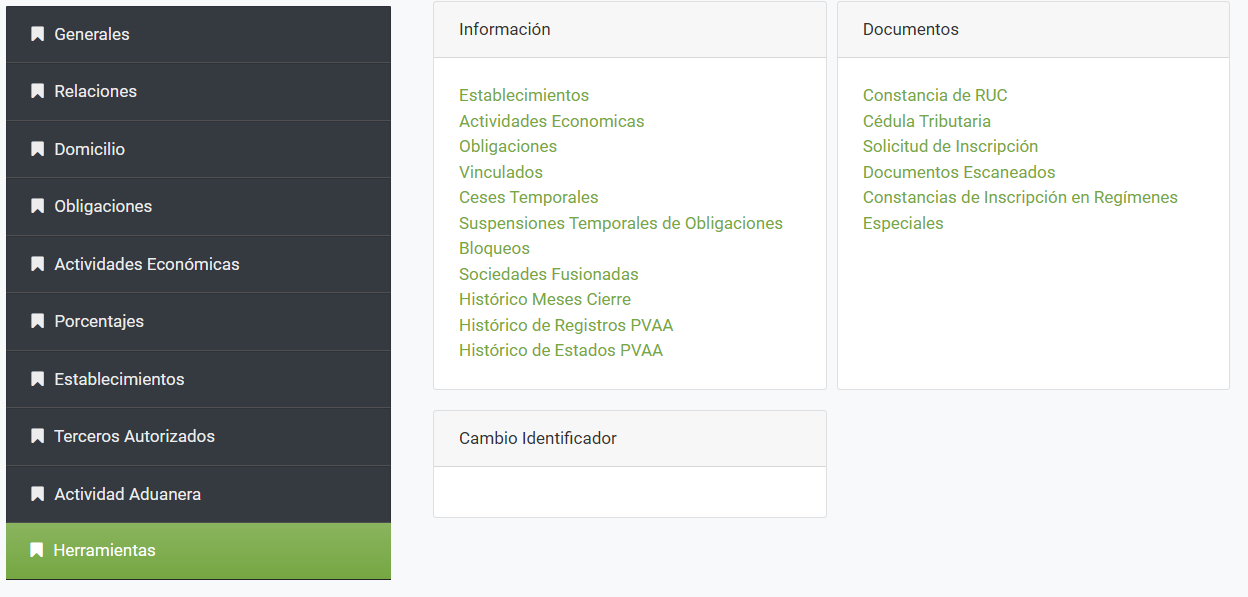
Top right, next to your name, select “Mi perfil” and then the last section, “Herramientas”; you will be able to download both documents — the Constancia de RUC and the Cédula Tributaria.
9. Generate the payment slip and pay the taxes (Boleta de Pago)
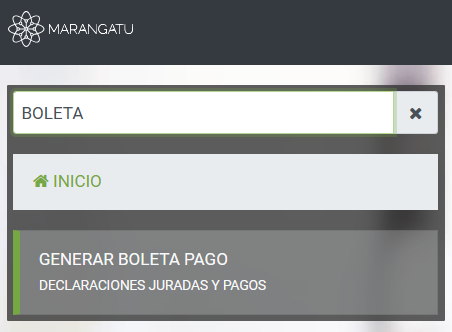
- After generating and confirming the monthly IVA declaration, type BOLETA in the search box, click “Generar Boleta de Pago” and download the generated payment slip.
- You can pay the boleta in any Paraguayan bank app under “pagar servicios”, selecting DNIT and entering the cédula or RUC and date of birth. Pay by the same deadline as the declaration — the day set by the last digit of your RUC (step 4).
This guide does not cover particular cases or specific situations that could reduce the amount of tax payable; for those, consult an accountant. The authors accept no responsibility for errors, misunderstandings, improper use of the portal’s tools, or possible changes to the requirements of the Dirección Nacional de Migraciones.
Want us to handle all of this for you? At Liberation.Travel we help with the whole permanent-residency process in Paraguay — including issuing invoices and filing the monthly IVA so your economic solvency is properly documented before you apply. Read the full article on the new requirements →